
Motionly: Image to Video AI
GeorgeGunEntertainment
4.34.00 Reviews
- Version
- 1.0.2
- Installs
- 50.00K
- Age Rating
- Mature 17+
Screenshots
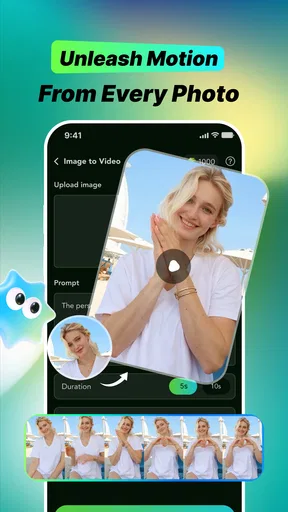
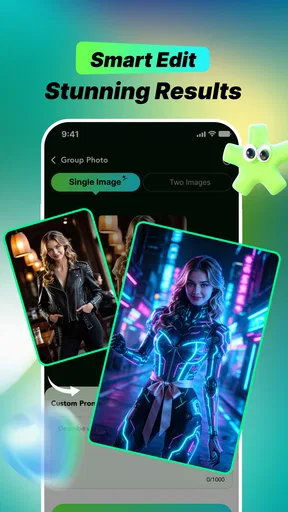
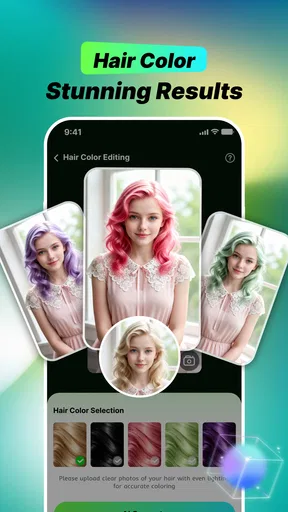
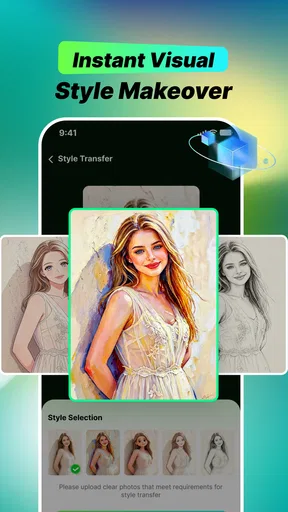
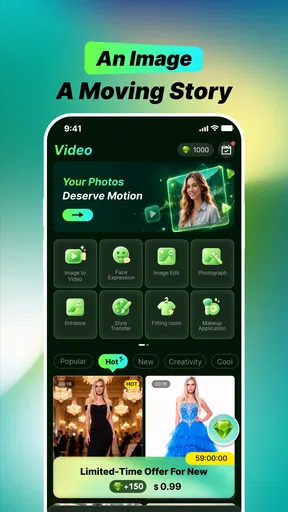
Our Review of Motionly: Image to Video AI
 Analysis by Appyee
I tried Motionly: Image to Video AI with a simple goal: take ordinary still images and turn them into short, more lively pieces of entertainment content. That starting point matters, because this is not a full video-editing suite in the traditional sense. It is an app from GeorgeGun built around the quicker idea of giving a photo motion, atmosphere, and a creative template without asking me to learn a complicated timeline.
The appeal is easy to understand. I may have a favorite travel photo, a portrait, a product image, or a group picture sitting unused in my gallery. Motionly gives that image a more active presentation through AI video effects and templates. The result is aimed at people who want something shareable without manually animating every element. In my view, it works best when I treat it as a fast creative tool rather than a replacement for a serious editor.
It is free to install, although individual in-app purchases range from $1.99 to $99.99. The app is rated for mature users aged seventeen and over, runs on Android 7.0 or later, and its current version is 1.0.2. Those details make it accessible to many Android users, but the mature rating is something families should take seriously before handing it to younger users.
From a still image to a finished AI video
I look at the move from a still photo to a finished clip as a short creative handoff: the source image sets the limits, while the selected treatment shapes its mood. Before settling on a result, I’d decide where I plan to share it and whether motion will help the image communicate. That practical choice leads naturally to the question of how quickly the workflow can feel.
Starting with the right image
The first important decision happens before I even choose a template: selecting an image that can survive movement. A sharply framed photo with one clear subject tends to be a better starting point than a busy group shot with several faces, tiny details, or a cluttered background. AI animation has less room for interpretation when the main subject is obvious.
For example, imagine I want to create a quick birthday greeting from a single portrait. I would choose a well-lit image where the face is not cut off and where the background does not compete with it. If I instead pick a dark photograph with several people partly hidden behind objects, the app has a harder visual problem to solve. The difference is not just cosmetic: a stronger source image gives the template a clearer subject to emphasize.
This is one of the less obvious lessons of using an image-to-video app. The creative effect cannot completely rescue a weak input. Motionly makes the process convenient, but convenience does not remove the need for basic image selection. I recommend keeping two or three possible photos ready and comparing them rather than committing to the first one in the gallery.
Choosing a creative direction
After importing an image, the main handoff is from the original photo to the app’s collection of creative templates and effects. This is where Motionly feels different from a conventional editor. Instead of starting with a blank project and building a sequence manually, I begin with a visual idea and let the app shape the transformation.
That approach is useful when I know the mood I want but do not know how to produce it. A calm portrait may suit a gentle presentation, while a colorful travel image may benefit from something more energetic. I would not choose a template only because its preview looks impressive. The better question is whether its movement supports the subject. A dramatic effect can make a quiet personal photo feel artificial, while a restrained treatment may preserve its character.
The strongest workflow is to match the effect to the photograph, not to force the photograph into the loudest template. This sounds simple, but it prevents a common disappointment: a technically animated result that no longer feels like the original image.
Letting the app handle the transformation
Once the image and creative treatment are selected, Motionly takes over the difficult part. That is the central reason to use it. I do not need to place keyframes, draw motion paths, or assemble a sequence from multiple clips. The app’s purpose is to turn a static visual into a more dynamic video-style result through its AI-focused workflow.
This makes it especially approachable for someone who usually stops at the photo stage. A small business owner could use a product image for a more eye-catching social post. A traveler could give a landscape photo a sense of movement before sending it to friends. Someone preparing a personal greeting could create a livelier presentation without learning a desktop editor.
There is also a practical trade-off here. Automation saves time, but it gives me less exact control than a traditional editor. If I need a precise duration, a carefully timed cut, exact text placement, or detailed control over every moving element, Motionly may not be the best tool. Its value comes from reducing decisions, not from exposing every decision.
The handoff from creation to sharing
The finished video is not the end of the workflow. I still need to decide where it belongs. A short animated image can work as a personal message, a social update, a visual invitation, or a quick promotional moment. The same result may feel appropriate in one setting and excessive in another.
I would preview the result with the intended audience in mind. A playful effect can be welcome in a birthday message but distracting in a product presentation. A portrait transformation may be fun for a private group yet feel uncomfortable if shared publicly without the subject’s permission. The app makes creation easier, but it does not make those social decisions for me.
For a realistic everyday example, picture a café owner who has one attractive photograph of a new dessert. Rather than posting the same still image again, the owner could use Motionly to create a more animated presentation for a social feed. The useful handoff is from the phone gallery to the app, then from the generated result to the business’s chosen sharing channel. The app helps with the middle step, but the owner still needs to check whether the effect keeps the dessert recognizable and whether any accompanying message is clear.
What makes the result useful
Motionly’s result is most valuable when the original photo already has a clear purpose. The app can add energy and novelty, but it does not automatically create a complete story. If I want viewers to understand an event, a sale, or a personal announcement, I may still need another tool for captions, branding, or a longer sequence.
This is why I see it as a focused entertainment app rather than a universal content studio. It can help a static image feel less static, which is a meaningful improvement for casual sharing. It is less suitable when the final output must follow strict brand rules or communicate several pieces of information in a controlled order.
Another useful distinction is between novelty and repeat value. The first few transformations can feel surprisingly engaging because an ordinary image receives a new presentation. Over time, the value depends on whether the available creative choices continue to fit the kinds of images I actually use. People who enjoy experimenting with photos are likely to return more often than users who need one formal video and nothing else.
Where the workflow can break
The first point of friction is the gap between expectation and input quality. The phrase “AI video” may suggest that any photo can become a polished cinematic clip. In practice, the source image still matters greatly. A low-quality or visually confusing picture may produce a result that feels less natural than expected.
The second issue is creative control. Motionly’s template-driven approach is convenient, but convenience can become restrictive when I want to adjust a very specific part of the output. Someone moving from a professional editor may miss detailed controls. Someone new to video creation may not mind, because fewer controls also mean fewer opportunities to become stuck.
Cost is another point to consider. The app itself is free, but optional purchases can reach $99.99 per item. I would explore the basic experience first and avoid assuming that every appealing possibility is included without an additional charge. That is especially important for casual users who only want to animate a handful of personal photos.
The mature age rating also affects who should use it. I would not recommend treating this as a general children’s creativity app simply because the workflow is easy to understand. Parents and guardians should check the app’s suitability for their household before allowing younger users to use it.
Who should use it, and who should skip it
I think Motionly is a good fit for people who have photos but little patience for traditional video editing. It suits casual creators, social media users, travelers, families preparing visual greetings, and small sellers who want a quick way to make a still image feel more active. It is also useful for someone who wants to test an idea quickly before investing time in a more elaborate project.
I would be more cautious about recommending it to a professional editor who needs frame-level control, a business with strict visual guidelines, or anyone producing a long-form video with multiple scenes and carefully timed audio. In those situations, a conventional mobile editor or desktop program is likely to be the better choice. Motionly can contribute an animated visual, but it is not designed to replace a complete production workflow.
It may also be the wrong choice for users who dislike algorithmic transformations of personal images. The app’s appeal depends on allowing an automated creative process to reinterpret a photo. If preserving every detail exactly is more important than adding movement, a manual slideshow or simple pan-and-zoom effect may feel safer and more predictable.
How it compares with familiar alternatives
Compared with a standard slideshow maker, Motionly offers a more direct path from one image to a stylized moving result. A slideshow editor gives me control over sequencing, transitions, captions, and timing, but it also asks me to make those choices myself. Motionly is quicker when the goal is one visually treated image rather than a carefully arranged collection.
Compared with a full mobile video editor, it is simpler and narrower. A full editor is better for combining clips, adding a structured voiceover, arranging layers, and refining a finished campaign. Motionly is better when I want to avoid the blank timeline and reach an interesting first result quickly.
Compared with leaving the image untouched, the app offers a clear advantage for attention. A moving presentation can make a familiar photo feel new. The trade-off is that motion may also distract from the image’s original meaning. I would use it when the goal is engagement or entertainment, not when absolute visual neutrality is required.
Practical habits that improve the outcome
I found that a small amount of preparation makes the workflow more reliable. First, I would crop the image before importing it if the subject is too far from the center or surrounded by unnecessary space. This gives the transformation a stronger visual starting point and reduces the chance that the effect emphasizes the wrong area.
Second, I would keep the first attempt deliberately simple. Rather than testing every effect at once, I would choose a template that complements the photo, inspect the preview, and then compare one alternative. This makes it easier to tell whether the improvement comes from the image itself or from an overly dramatic treatment.
Third, I would save the original photo separately and judge the generated result beside it. That comparison reveals whether Motionly has added useful energy or merely added movement. It is a particularly helpful habit for portraits, where preserving the person’s recognizable appearance matters more than producing the most spectacular effect.
Finally, I would decide the destination before creating the video. A private message, a social post, and a small business update may need different levels of intensity. Thinking about the handoff early helps me avoid making a result that looks exciting in the app but feels unsuitable once it reaches its audience.
My overall experience with the app
Motionly has a clear identity: it is a fast way to give still images a more animated, entertaining presentation. GeorgeGun keeps the concept focused on templates and effects rather than turning the app into an intimidating editing workstation. That focus is its main strength, especially for users who want a result quickly and do not want to study a complicated interface.
The app has also attracted a modest but positive response, with a 4.3 average from around forty ratings and over fifty thousand installs. I would read that as encouraging interest rather than proof that it will suit every workflow. The experience is personal: people who enjoy automated visual experimentation may find it immediately appealing, while control-oriented editors may outgrow it quickly.
My recommendation is straightforward. Try the free version with a strong, well-composed photo and judge the result against your actual purpose. If you want a quick animated greeting, a playful social image, or a fresh presentation for a single photo, Motionly is worth exploring. If you need precise editing, a multi-scene project, or complete control over the final video, I would choose a fuller editor instead.
In the end, the app succeeds when I use it for the job it was built to handle: moving an image from the gallery into a creative, shareable form with minimal effort. It does not eliminate every creative decision, and it cannot guarantee that every photo will transform beautifully. But when the starting image is strong and the selected effect matches its mood, it offers a pleasantly quick bridge from a forgotten still picture to something people are more likely to notice.
Verdict
Strengths of Motionly: Image to Video AI
- Turns still images into engaging short videos with minimal effort.
- Offers creative motion effects without requiring advanced editing skills.
- Useful for social media posts, ads, presentations, and personal projects.
- AI-assisted animation can produce results quickly compared with manual editing.
- Simple workflow makes it approachable for beginners and casual creators.
Limitations of Motionly: Image to Video AI
- Results may look unnatural when the source image has complex details.
- Free usage may be limited by credits, exports, or available effects.
- Some generated videos can lack consistency between frames.
- High-resolution or longer exports may take considerable processing time.
- Privacy concerns may arise when uploading personal or sensitive images.
Similar Picks in This Category
View All
Google Play Games
Google LLC3.9

Netflix
Netflix, Inc.4.8

YouTube Kids
Google LLC4.2

Disney+
Disney4.4

Prime Video
Amazon Mobile LLC4.7

Steam
Valve Corporation3.2
Frequently Asked Questions
What is Motionly: Image to Video AI and what can it do?
Motionly: Image to Video AI is designed to turn still images into short animated videos using artificial intelligence. After selecting an image, you can apply motion effects, transitions, and other creative treatments to create content suitable for social media, presentations, or personal projects. Results may vary depending on image quality, composition, and the selected animation style.
Is Motionly: Image to Video AI free to download and use?
The application may be available to download at no initial cost, but some features, effects, export options, or usage limits can require a subscription or in-app purchase. Before creating multiple videos, check the pricing page and trial conditions carefully. Also review whether the free version includes watermarks, lower-resolution exports, advertisements, or limits on daily AI generations.
What type of images work best with Motionly: Image to Video AI?
For the most convincing results, use clear, well-lit images with the main subject visible and separated from the background. Portraits, landscapes, product photos, and visually simple compositions are generally easier for the AI to animate. Very small, blurry, heavily edited, or crowded images may produce unnatural movement, distorted details, or results that do not closely match your original idea.
Can videos created with Motionly be saved and shared on social media?
Motionly is intended for creating shareable animated clips, and generated videos can typically be exported to your device or shared through compatible apps, depending on the version and plan you use. Export quality, duration, resolution, and watermark settings may vary. Check the available export controls before subscribing, especially if you need content for professional publishing or commercial campaigns.
Does Motionly protect my images and personal data?
Because the app uses AI processing, selected images may need to be uploaded to remote servers rather than processed entirely on your phone. Before using private photographs, review Motionly’s privacy policy, terms of service, retention rules, and deletion options. Avoid uploading sensitive documents or images of other people without permission, and confirm how your content may be stored or used.
